

Setting up Fiddler for Webresources
In this part of our two part series around webresources with react, we will dive into debugging and setting up Fiddler for webresources.
In our case the React app we created in the first part of this two part tutorial. Of course, the essence of debugging webresources with Fiddler can be adapted to any webresource.
First, you need to download and install Fiddler ↗. Once Fiddler is up and running, we can jump straight into setting it up.
Filter Network Traffic
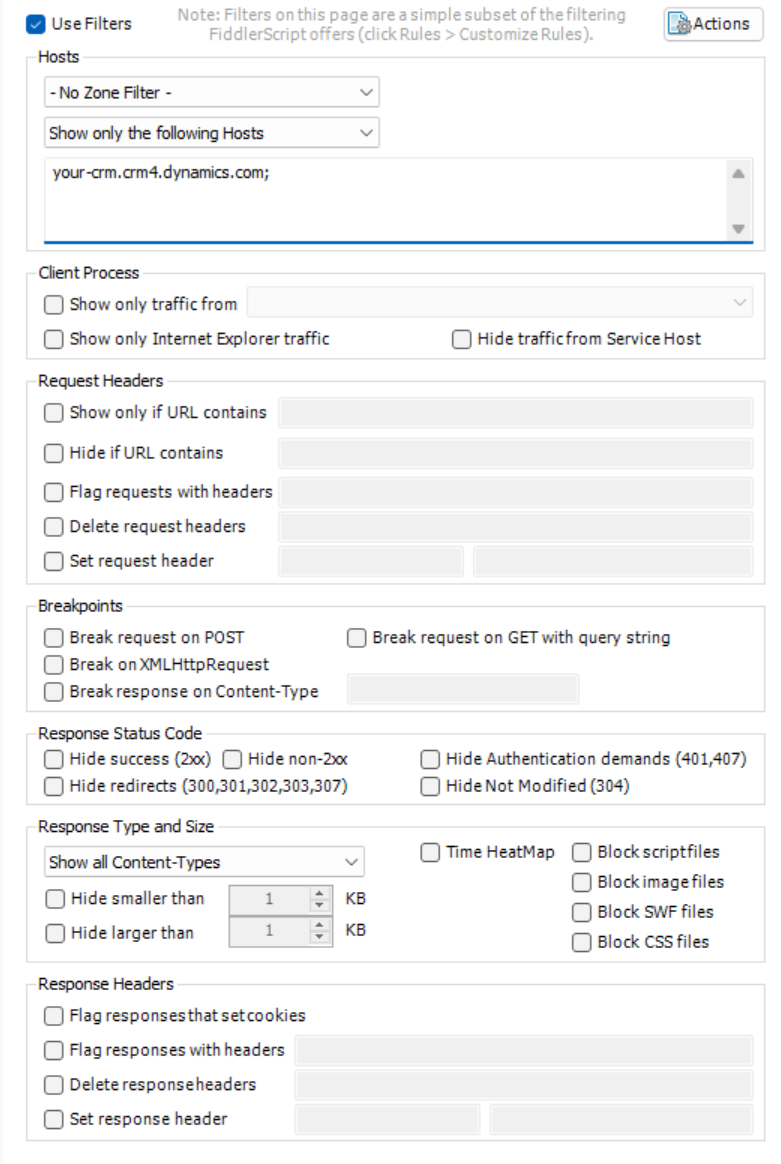
On the left side of Fiddler we can see our current network traffic, while the right side contains a few tabs with different functionality. As we don’t need the whole network traffic in our Fiddler, we are adding a filter. To do that, we click on the Filters tab on the right side of the UI and make sure to check the field „Use Filters“ at the top of the page. In the Hosts section we don’t need to specify a „Zone Filter“, but in the second dropdown we are choosing „Show only the following Hosts“. In the text area below, we can now add our Dynamics CRM URL. Once entered and saved, the Filters tab should look like this:
Replacing online files with local files
Now we can switch to the AutoResponder tab. The AutoResponder simply catches a network request and instead of returning the file from the server, it returns a local file.
In this tab we need to check the Enable rules and Unmatched requests passthrough boxes. Now we can add our first rule. In the first textbox of the rule editor, we can define which URLs to match. We do this by providing a Regex which matches the index.html of our React Web Resource:
REGEX:.*\/webresources/my-app/index.htmlThe path can also be found by searching the network requests list with ctrl+f and entering the file name. Fiddler will then highlight the matching requests and we can copy the correct path to the wanted file. In the second textbox of the rule editor we need to tell Fiddler what to return when the just specified Regex matches. Here we need to enter the local path to the index.html:
\my-app\build\index.htmlAfter saving the rule we add two more rules for the two remaining files we deployed in the first part of the tutorial:
REGEX:.*\/webresources/my-app/css/my-app.css
\my-app\build\css\my-app.css
REGEX:.*\/webresources/my-app/js/my-app.js
\my-app\build\js\my-app.jsNow we are ready to debug our app directly in our Dynamics CRM. To do this open the URL or form you used your webresource in and open the developer tools from your browser by pressing F12. By pressing ctrl+p we can search for the file we want to debug. In our case, we can search for App.tsx to see the file contents, set a breakpoint and step through the file. This is how easy setting up Fiddler for webresources is!